Inventory Management in Google Sheets: Full Guide

You have 200 products, three suppliers, and a spreadsheet that stopped making sense two weeks ago. Sound familiar? Google Sheets can actually handle inventory management well if you set it up right. This guide walks you through building an inventory management Google Sheets system from scratch, with real formulas, templates, and a clear picture of when you'll need something more powerful.
Summary
Google Sheets stops being viable for inventory around 500 SKUs — not because of row limits, but because simultaneous editing conflicts break data integrity first. Three formulas (SUMIF, VLOOKUP, conditional formatting) handle 80% of what $100/month inventory tools do, and building your own sheet from scratch in 20 minutes outperforms downloaded templates that force you into someone else's workflow. The real hidden cost is 3-5 hours per week of manual reconciliation that compounds once you scale past one location. At $20/month for a custom inventory app with a real database, the upgrade pays for itself the moment your manual workarounds exceed 2 hours per week.
Why Use Google Sheets for Inventory Management

Most small businesses don't need a $200/month inventory platform on day one. Google Sheets gives you a working system for free, with features that matter for early-stage inventory tracking:
- Zero cost: No subscription fees, no per-user charges, no feature gates
- Real-time collaboration: Multiple team members can view and edit simultaneously
- Familiar interface: If you've used Excel, you already know 90% of what you need
- Cloud-based: Access your inventory data from any device, anywhere
- Flexible: Add columns, change formulas, restructure as your business evolves
Google Sheets also integrates with tools like Google Forms (for intake logging), Google Apps Script (for automation), and third-party connectors like Zapier. For a business tracking fewer than 500 SKUs, this is more than enough.
That said, spreadsheets weren't designed for inventory management. They work because they're flexible, not because they're optimized for it. Keep that distinction in mind as we build this out.
How to Set Up Inventory Management in Google Sheets
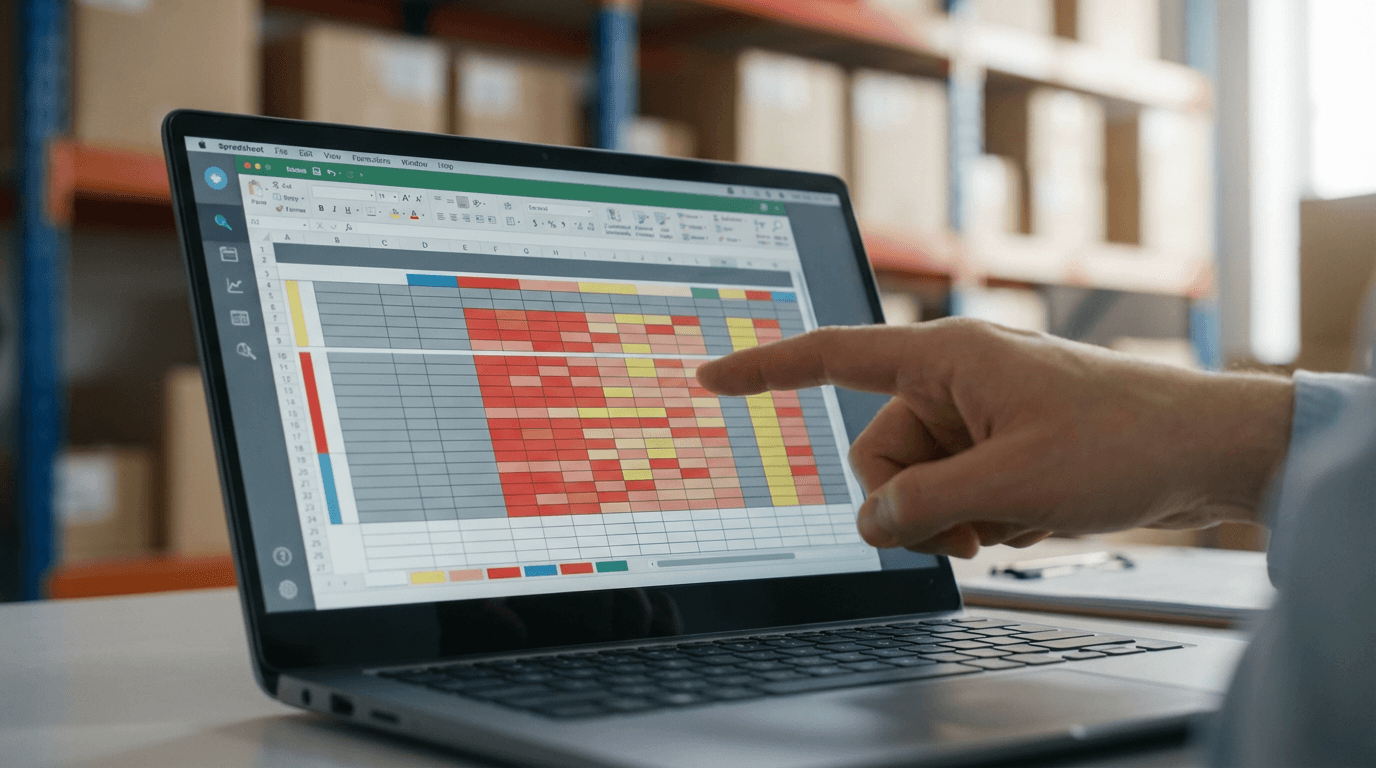
Step 1: Create Your Inventory Table Structure
Open a new Google Sheet and set up these columns in Row 1:
| Column | Header | Purpose |
|---|---|---|
| A | Item ID | Unique SKU or product code |
| B | Product Name | Human-readable name |
| C | Category | Product grouping |
| D | Supplier | Vendor name |
| E | Unit Cost | Purchase price per unit |
| F | Selling Price | Retail price per unit |
| G | Quantity in Stock | Current inventory count |
| H | Reorder Level | Minimum stock threshold |
| I | Reorder Quantity | How many to order when low |
| J | Last Updated | Date of last stock change |
Format Row 1 as bold with a background color. Freeze it so it stays visible when scrolling (View > Freeze > 1 row).
Step 2: Add Data Validation Rules
Data validation prevents typos and keeps your inventory data clean. Google's official data validation documentation covers all available rule types, but here are the three that matter most for inventory:
- Category column (C): Select the column, go to
Data > Data validation, choose "List of items", and enter your categories (e.g., Electronics, Clothing, Food, Office Supplies) - Quantity columns (G, H, I): Set validation to "Number" > "greater than or equal to" > 0
- Date column (J): Set validation to "Date" to enforce consistent formatting
Step 3: Set Up Conditional Formatting for Reorder Alerts
This is where your spreadsheet starts acting like inventory software. Select column G (Quantity in Stock), then:
- Go to
Format > Conditional formatting - Create a custom formula rule:
=G2<=H2 - Set the format to red background with white text
- Add a second rule:
=G2<=(H2*1.5)with yellow background (early warning)
Now any product at or below its reorder level turns red automatically. Products approaching the threshold turn yellow.
Step 4: Build a Dashboard Summary Tab
Create a second sheet called "Dashboard" and add these summary formulas:
Total SKUs:           =COUNTA(Inventory!A2:A)
Total Stock Value:    =SUMPRODUCT(Inventory!E2:E,Inventory!G2:G)
Items Below Reorder:  =COUNTIF(Inventory!G2:G,"<="&Inventory!H2:H)
Total Categories:     =COUNTA(UNIQUE(Inventory!C2:C))
For a category-level breakdown, use SUMIF:
=SUMIF(Inventory!C:C,"Electronics",Inventory!G:G)
This gives you a quick overview without scrolling through hundreds of rows. If you want to visualize this data, you can make column charts in Google Sheets to track stock levels by category over time.
Essential Formulas for Inventory Tracking in Google Sheets
These three formulas handle most inventory management tasks. Copy them, modify the ranges, and you're set.
SUMIF: Total Stock by Category or Supplier
=SUMIF(C:C,"Electronics",G:G)
Returns the total quantity in stock for all items in the "Electronics" category. Replace C:C with your category column and G:G with your quantity column.
Practical use: Quick answer to "How many units do we have from Supplier X?"
=SUMIF(D:D,"Acme Corp",G:G)
VLOOKUP: Pull Product Details by SKU
=VLOOKUP("SKU-001",A:F,6,FALSE)
Looks up SKU-001 in column A and returns the value from column 6 (Selling Price). The FALSE at the end forces an exact match.
Practical use: Build a separate "Order Form" sheet where you type a SKU and it auto-fills product name, price, and supplier.
Conditional Formatting Formulas: Reorder Alerts
Beyond the basic red/yellow setup from Step 3, try these:
Days since last update (highlights stale data):
=TODAY()-J2 > 30
Overstock alert (quantity is 3x above reorder level):
=G2 > H2*3
These formulas turn your passive spreadsheet into an active monitoring tool. For more advanced data analysis techniques, check out how to use pivot tables in Google Sheets to slice inventory data by supplier, category, or time period.
Free Inventory Management Google Sheets Templates

Building from scratch gives you full control, but templates save time if your needs are standard. Here are the most useful types:
Basic Inventory Tracker
Best for: Small businesses with a single location and under 200 products.
Tracks item name, SKU, quantity, cost, and selling price. Usually includes a simple dashboard tab with totals. Start here if you've never managed inventory in a spreadsheet before.
Warehouse Inventory Template
Best for: Businesses with physical storage locations that need to track bin numbers and zones.
Adds location columns (warehouse, aisle, shelf, bin) to the basic template. Useful when multiple people pull stock and need to find items quickly.
Multi-Location Inventory Template
Best for: Businesses operating from two or more locations (e.g., store + warehouse, or multiple retail outlets).
Tracks the same product across different locations with separate quantity columns. Includes transfer tracking between locations. This is where spreadsheets start to strain, since keeping quantities synchronized across locations requires discipline.
E-Commerce Inventory Template
Best for: Online sellers managing products across Shopify, Amazon, or Etsy.
Adds fields for marketplace-specific data: listing URLs, marketplace SKUs, fulfillment status, and shipping dimensions. Often includes a sales velocity column to predict reorder timing.
Restaurant/Food Inventory Template
Best for: Food service businesses tracking perishable goods with expiration dates.
Adds expiration date, storage temperature, and unit of measure columns. Conditional formatting highlights items approaching expiration. This template type needs frequent updates since food inventory changes daily.
You can find free versions of these templates on sites like Smartsheet, Coupler.io, and Sheetgo. Download one, then customize the columns to match your actual workflow rather than trying to force your data into someone else's structure.
Limitations of Inventory Management in Google Sheets
Spreadsheets work until they don't. Here's where Google Sheets breaks down for inventory management:
Performance ceiling: Sheets slows noticeably around 5,000+ rows with formulas. If you have 500 products with daily transaction logging, you'll hit this within a year.
No real-time sync with sales channels: Google Sheets can't automatically deduct stock when someone buys on your website. You need manual updates or a Zapier/Apps Script workaround that introduces delay.
Multi-user conflict risk: Two people editing the same row can create data conflicts. Google Sheets handles simultaneous editing, but it doesn't handle simultaneous inventory counting well. One person counts aisle 3 while another processes a return for an item in aisle 3, and you get a miscount.
No barcode scanning: You can't scan items directly into a spreadsheet without additional hardware and middleware. Manual entry means manual errors.
No role-based access: Everyone with edit access can change anything. There's no way to let warehouse staff update quantities while preventing them from changing prices.
No audit trail: Google Sheets has version history, but no transaction-level audit log. You can't answer "Who changed the quantity of SKU-042 last Tuesday?"
No automated purchase orders: When stock drops below the reorder point, the spreadsheet turns red. That's it. You still need to manually create and send the purchase order.
For a small business just getting started, these limitations are manageable trade-offs. But when you need proper search functionality across your inventory data, or when manual workarounds consume more time than they save, it's time to consider a purpose-built tool.
When to Move Beyond Spreadsheets

If three or more of these apply to you, you've outgrown Google Sheets for inventory:
- You're tracking 500+ SKUs across multiple locations
- Two or more people update inventory simultaneously
- You need real-time sync with an e-commerce platform
- You want barcode scanning for receiving and counting
- You need role-based permissions (view vs. edit vs. admin)
- Manual data entry errors cost you money every month
The traditional path is paying $50-300/month for dedicated inventory software like Cin7, Sortly, or inFlow. But there's another option that most people overlook: build exactly the inventory app you need, without writing code.
How to Build a Custom Inventory App with YouWare
YouWare is an AI app builder that turns plain English descriptions into working React applications with a real database backend. Instead of adapting your workflow to fit someone else's software, you describe your process and get an app built around it.
Here's what the actual process looks like:
Step 1: Describe your inventory system in the chat.
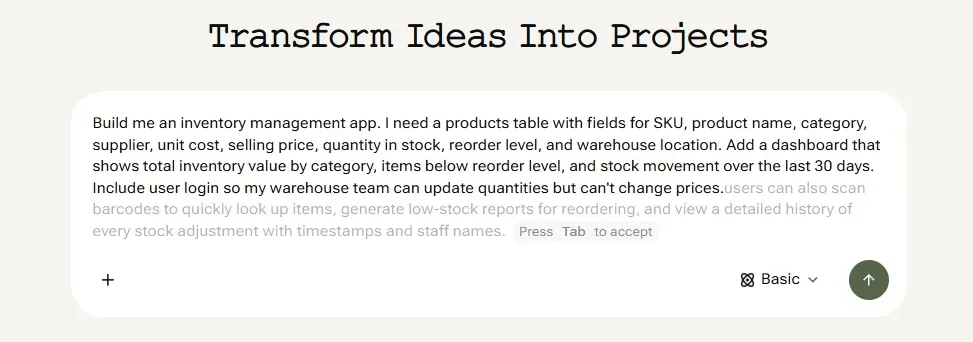
Open YouWare and type something like:
"Build me an inventory management app. I need a products table with fields for SKU, product name, category, supplier, unit cost, selling price, quantity in stock, reorder level, and warehouse location. Add a dashboard that shows total inventory value by category, items below reorder level, and stock movement over the last 30 days. Include user login so my warehouse team can update quantities but can't change prices."
YouWare's AI generates the full React application, complete with components, pages, and routing. You'll see a live preview in seconds.
Step 2: YouBase handles your backend automatically.
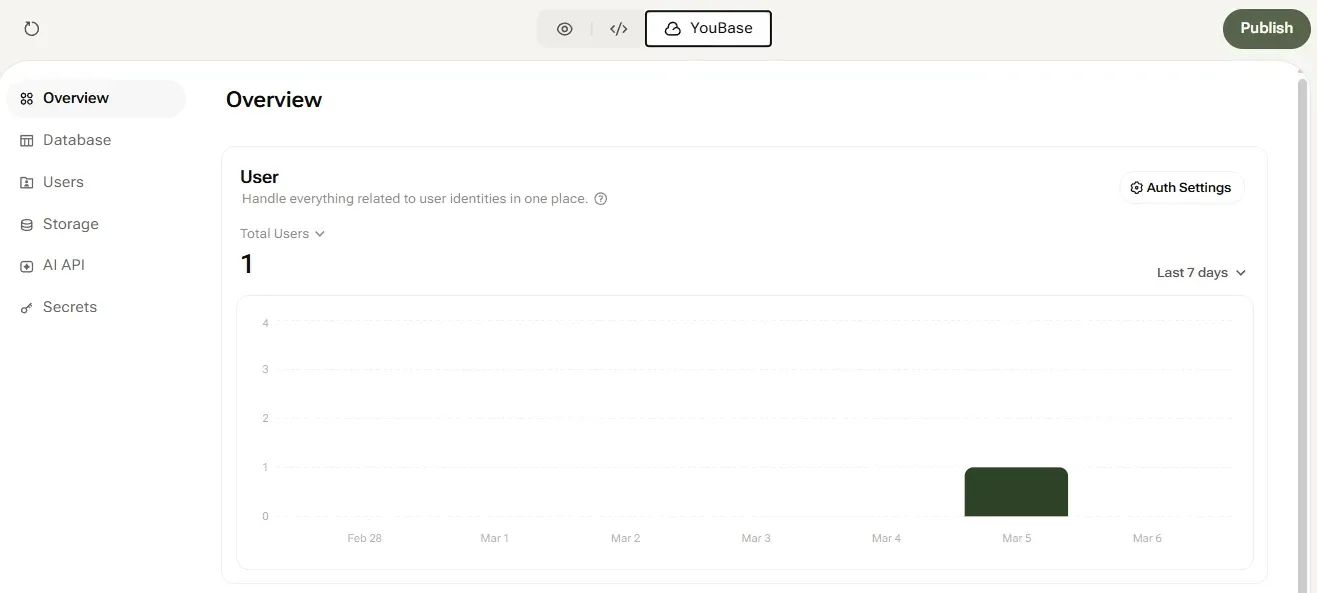
This is where YouWare pulls ahead of a spreadsheet. YouBase — YouWare's built-in cloud backend — sets up everything your inventory app needs:
- Database: Your products, transactions, and supplier data are stored in persistent, structured tables. No more worrying about someone accidentally deleting a row.
- User authentication: Set up email login or Google OAuth so each team member has their own account. You control who can view, edit, or manage inventory.
- Storage: Accept file uploads like product images, supplier invoices, or packing slips — all linked to the right database records.
- Secrets: Store API keys securely (for example, if you connect to a shipping provider or payment gateway). Keys are encrypted and never exposed to frontend code.
YouBase creates your database tables automatically from your description. You can also add tables later by typing "Add a purchase orders table with fields for supplier, order date, expected delivery, and status."
Step 3: Refine with visual editing and AI chat.
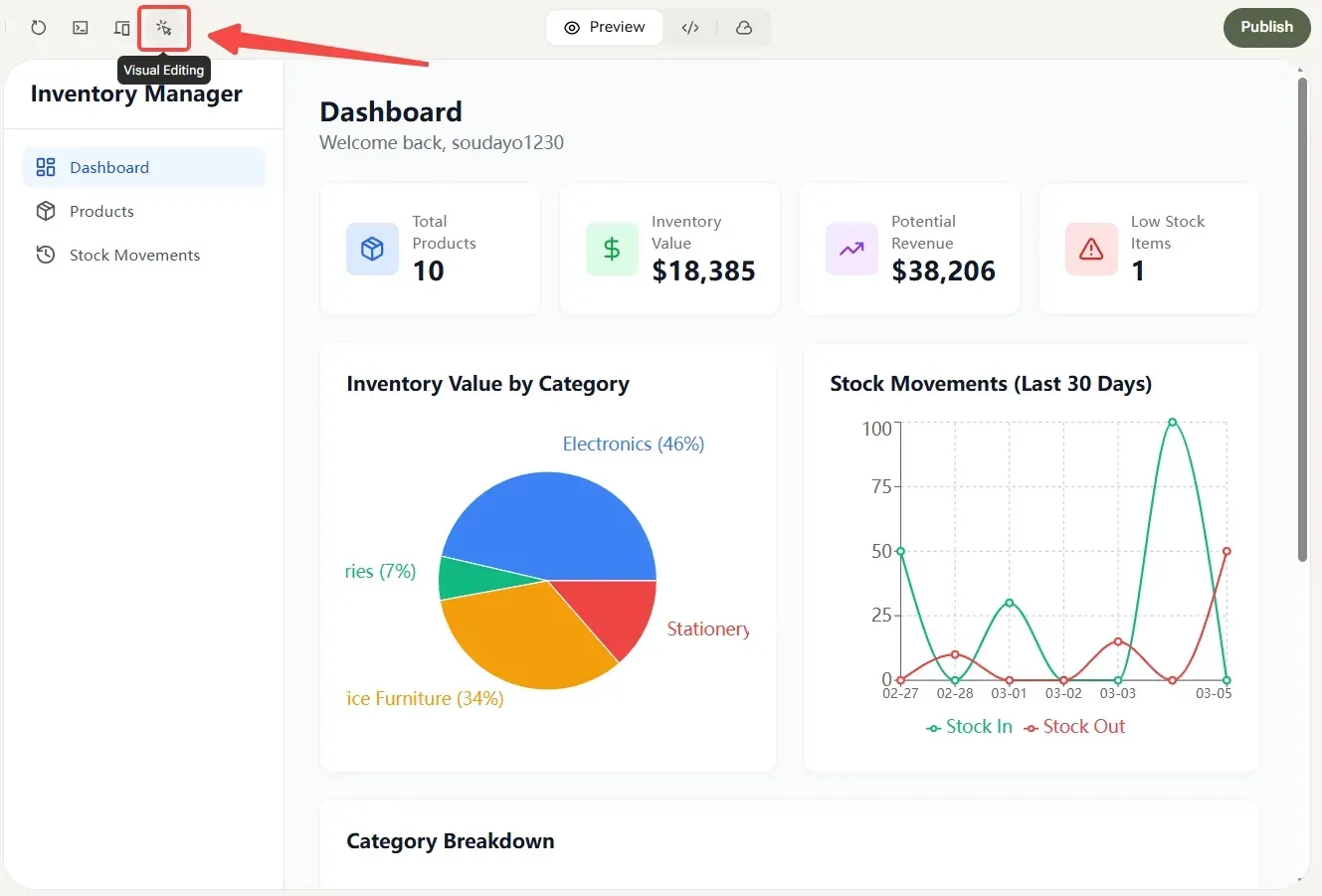
Your first version won't be perfect, and that's fine. YouWare gives you multiple ways to iterate:
- Visual Edit: Click any element on the page — text, button, layout — and change it directly. Adjust colors, spacing, font sizes without touching code. Visual edits cost zero credits.
- AI chat: Type follow-up requests like "Add a barcode field to the products table" or "Make the reorder alert send me an email notification." The AI modifies the code while keeping everything else intact.
- Boost: One click and the AI analyzes your entire app, then suggests and applies improvements to layout, performance, and user experience.
- CoView: If something looks off but you can't describe it in text, record your screen while talking. Point at the misaligned element, say "this spacing feels too tight," and the AI sees exactly what you mean.
Step 4: Publish and share with your team.
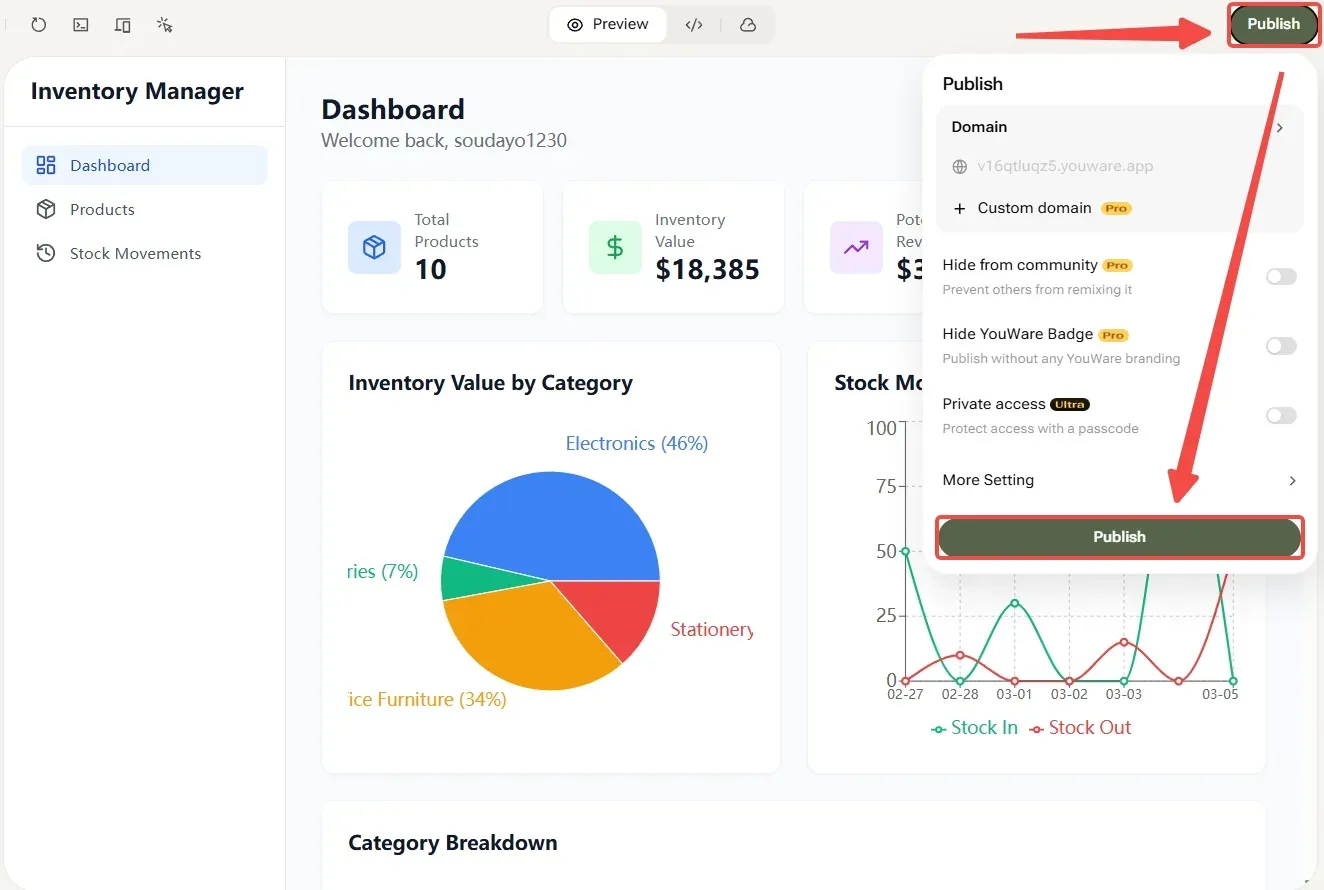
Click Publish and your inventory app gets a live URL instantly. Share it with your warehouse team, set up password protection if you want restricted access, or connect a custom domain. Your app runs on Cloudflare's edge network, so it's fast from anywhere.
What This Costs vs. Traditional Inventory Software
| Option | Monthly Cost | Customization | You Own the Code |
|---|---|---|---|
| Google Sheets | Free | High (but fragile) | N/A |
| Dedicated inventory software | $50-300/month | Low to medium | No |
| YouWare Pro | $20/month | Complete | Yes |
The Pro plan ($20/month) includes YouBase for database storage, 3,000 AI credits per month, up to 100 projects, custom domain support, and the ability to download and export your code anytime. That's less than most dedicated inventory tools charge, and you actually own everything you build.
If you're currently juggling a dashboard spreadsheet alongside a separate accounting sheet for the same inventory, consolidating into a single custom app eliminates the manual reconciliation that eats 3-5 hours of your week.
FAQ
Can I use Google Sheets for inventory management?
Yes, and it works well for small to mid-sized operations. Google Sheets handles up to about 500 SKUs comfortably with formulas for reorder alerts, stock valuation, and category summaries. It's free, collaborative, and accessible from any device. The main trade-offs are no barcode scanning, no real-time sales channel sync, and performance degradation with very large datasets. For businesses just starting out or managing a single location, Google Sheets is a solid choice before investing in dedicated inventory software.
Does Google Sheets have a built-in inventory template?
Google Sheets does not include a preloaded inventory management template in its template gallery. However, dozens of free templates are available from third-party sources like Smartsheet, Coupler.io, Sheetgo, and Wise. You can also build your own from scratch in about 15-20 minutes using the step-by-step setup described in this guide. Building your own has the advantage of matching your exact product fields and workflow rather than adapting to a generic structure.
How do I set up automatic reorder alerts in Google Sheets?
Use conditional formatting with a custom formula. Select your "Quantity in Stock" column, go to Format then Conditional formatting, and enter the formula =G2<=H2 where G is your stock column and H is your reorder level column. Set the format to a red background. Add a second rule with =G2<=(H2*1.5) for a yellow early-warning highlight. This makes any product at or below its reorder point immediately visible. You will still need to manually create purchase orders since Google Sheets cannot send automated notifications without Apps Script.
What are the limitations of using Google Sheets for inventory?
The main limitations are performance (slows down past 5,000+ rows with formulas), no real-time sync with sales channels, no barcode scanning support, no role-based access control, and no transaction-level audit trail. Multi-user editing can also cause conflicts during simultaneous inventory counts. These limitations are manageable for small operations, but businesses tracking 500+ SKUs across multiple locations or needing automated purchase orders typically need dedicated inventory software or a custom-built application.
When should I stop using Google Sheets for inventory?
Consider moving beyond spreadsheets when you track 500+ SKUs, need real-time sync with an e-commerce platform, require barcode scanning, or have multiple people updating stock simultaneously. The clearest sign is when manual workarounds (copy-pasting between sheets, emailing stock updates, reconciling mismatches) consume more time than the spreadsheet saves. At that point, you can either pay for dedicated inventory software ($50-300/month) or build a custom inventory app with an AI platform like YouWare that fits your exact workflow.

Ready to build your inventory app?
Try YouWare Free